
VR Deck
FlyPT Mover: start, stop and watch the rig from the deck
The Mover page starts and stops Mover's outputs and sources and shows what Mover is commanding, actuator by actuator. One-time setup: a loopMIDI port, four bindings on Mover's Options page, and Mover's UDP output for the gauges.
Nothing on the deck is an emergency stop. The keys only send keystrokes and MIDI. Mover itself decides what runs, and the rig's hardware e-stop stays the only safety device. Keep it within reach.
- The Mover page
- Two editions, and why
- The loopMIDI port
- Bindings on Mover's Options page
- Outputs first: the gate
- The gauges: Mover's UDP output
- Other transports
- Game telemetry into Mover, in VR
The Mover page
Page 3 of either shipped profile; the Mover page key on the Home page opens it.
- Outputs on and Sources on: hold one second. Outputs off and Sources off: tap.
- Act 1 to Act 6: one gauge key per actuator, in a clockwise ring around the Limits tile.
- Mover window:
alt+m, Mover's show-main-window shortcut; desktop only. - Home at slot 15.
Outputs off parks the rig and Outputs on lifts it to the drive pose; both poses are set in Mover's rig module. The deck ships no separate Park key.
assets/img/vr-deck/shots/mover-03-mover-page-deck.pngTwo editions, and why
In a running stage the game holds the keyboard exclusively (DiRT Rally 2.0 in VR, for one): no keystroke, from the deck or a physical keyboard, reaches Mover's keyboard hook, so Mover's own Alt+O, Ctrl+O, Alt+S and Ctrl+S work only in menus or with the game unfocused. A MIDI note does reach Mover: a deck MIDI key bound in Mover stopped all outputs from inside a running stage (Mover 3.7.0.26). So the shipped profile comes in two editions that differ only in the four command keys:
| Key | MIDI edition | Keyboard edition | Hold / gate |
|---|---|---|---|
| Outputs off | note 60, channel 1 | ctrl+o | tap |
| Outputs on | note 61, channel 1 | alt+o | hold 1 s |
| Sources off | note 62, channel 1 | ctrl+s | tap |
| Sources on | note 63, channel 1 | alt+s | hold 1 s, Mover gate (below) |
- Keyboard edition: Hotkey keys on Mover's own shortcuts. Nothing to install or bind; they work from Mover's menus and the desktop, not inside a stage.
- MIDI edition: the same four commands as notes on the virtual port loopMIDI Port, channel 1, velocity 127, 100 ms notes. They work inside a stage after the one-time binding below.
The loopMIDI port (MIDI edition)
Install loopMIDI (Tobias Erichsen's free program) and create one port named exactly
loopMIDI Port.Screenshot to addassets/img/vr-deck/shots/mover-01-loopmidi.pngloopMIDI with one port named exactly loopMIDI Port. Windows 11 (build 26100 and later): the Windows MIDI Service lists devices when it starts, so a port created while it runs is invisible to every program until the service restarts. In an administrator PowerShell run:
Restart-Service midisrv -ForceOr restart the PC.
Restart Mover, which then lists the port under Sources › Midis, and restart the Stream Deck app, so the companion's port list has it. Quit the app from its tray icon; closing the window only hides it.
Until the companion lists the port, the four Mover keys dim with a NO PORT badge and a press only alerts: nothing is sent. They undim by themselves once the port is listed; the list is re-checked every 15 seconds.
Screenshot to addassets/img/vr-deck/shots/mover-05-no-port.pngA Mover command key dimmed with its NO PORT badge while the loopMIDI port is not listed.
Bindings on Mover's Options page
In Mover's Options page, click the field of the command (Start/Stop all outputs, Start/Stop all sources; left = start, right = stop), then press the deck key once; the field shows M.LOOPMIDIPORT0.N<note>. This replaces that field's keyboard shortcut.
- One control per field. Bind each note to exactly one field and clear any earlier test binding: a note held by two fields fires both.
- A bound field keeps no keyboard shortcut. Once Outputs on and off are bound to notes 61 and 60, Alt+O and Ctrl+O no longer reach Mover, which is why the keyboard edition is a separate profile rather than a second set of keys.
- The Setup key lists the bindings to make, built from the keys on your deck: Bind in Mover's Options page: Outputs off = note 60 ch 1, Outputs on = 61, Sources off = 62, Sources on = 63. Mover's own bindings cannot be read back, so the row stays green once the port exists.
- Module keys: any module's Connect box can take its own deck key. Add a MIDI key with a new note, right-click that box in Mover, Set hot controls, press the key.
- Options persist in the registry; module settings (the UDP output below) persist only in the saved Mover file.
assets/img/vr-deck/shots/mover-02-options-bindings.pngOutputs first: the gate
Order matters on some USB-serial boards: start Outputs first (that opens the COM ports), then Sources. To pause motion mid-session use the Sources keys and leave the Outputs connected. Connecting outputs while a source already runs has blue-screened a PC with Silicon Labs CP2102 boards.
The shipped Sources on key therefore carries the Mover gate (inspector setting Mover gate: Only while the Mover feed is live, available on every Hotkey, Toggle and MIDI key): it only fires while the plugin received a Mover feed packet within the last 2 seconds. Mover's Start all outputs connects every output at once, the one that feeds the plugin included, so the feed is the tell that the outputs are up.
- Without a live feed the key dims with an OUTPUTS 1ST badge, a press only alerts (nothing sent), and the key redraws by itself when the feed comes or goes, within a few seconds.
- The gate needs the Mover feed set up (next section). With no feed the key never fires: set the feed up, or switch the gate to None in the key's inspector.
- It is a convenience interlock on a key press, not a safety device. The gate only knows that the output feeding the plugin is running, so start and stop outputs with Mover's all-outputs commands (or the deck's Outputs keys), so the feed output and the rig's serial outputs move together.
assets/img/vr-deck/shots/mover-04-outputs-1st.pngThe gauges: Mover's UDP output
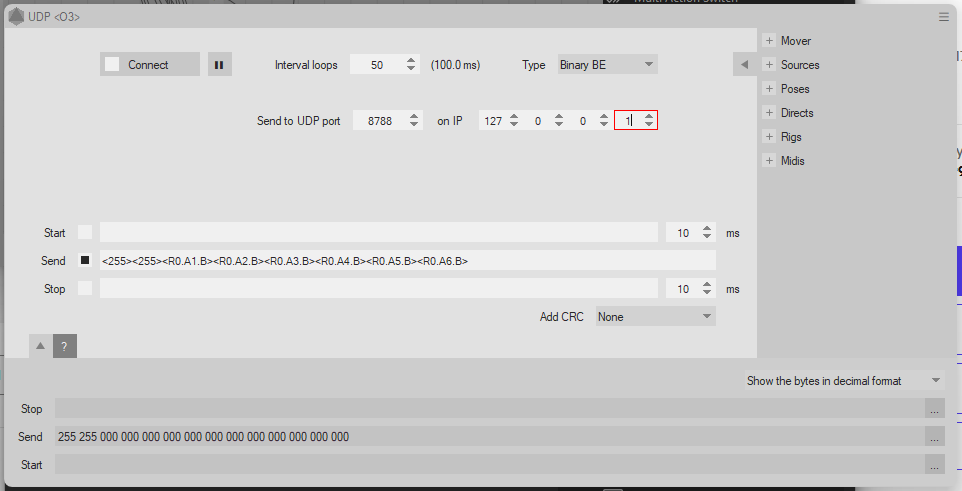
The gauges show what Mover is commanding, straight from Mover, ten times a second. One-time setup in FlyPT Mover: Add › Outputs › UDP, then:
| Field | Value |
|---|---|
| IP | 127.0.0.1 (if the module asks for one; see the note below if it only has a port) |
| Port | 8788 |
| Type | Binary BE |
| Send string | <255><255><R0.A1.B><R0.A2.B><R0.A3.B><R0.A4.B><R0.A5.B><R0.A6.B>: the same tags as the serial outputs to the rig boards, one tag per actuator in one line, two to sixteen; a hexapod has six |
| Interval | around 100 ms (50 loops in the screenshot) |
| Add CRC | None |
Then start the output and save your Mover file: Mover keeps a new module and its values only once the file is saved; otherwise the module is back to its defaults at the next start.
- If Mover's UDP module only has a port field, it broadcasts: set
"moverFeedBind": "0.0.0.0"in%LOCALAPPDATA%\VRDeck\settings.jsonand allow the Stream Deck app through the Windows firewall when Windows asks. Packets from other machines are ignored either way. - Use Binary BE. Binary LE is not supported.
- Which actuators a gauge shows is ticked in its inspector: checkboxes 1 to N (N grows with what Mover sends, up to 16) plus All. A bars key draws six at most; the Limits tile watches every ticked actuator. Under the boxes a live line says Mover is sending 3 actuators (via udp, last packet 120 ms ago) or No Mover packets yet: see the Setup key.
- The page's six Act keys and its Limits tile (1 to 6) are for a hexapod. For a 2-, 3- or 4-actuator rig delete the spare keys or re-tick; the key labels itself from the ticks (Act 3, Act 1-3) unless you type a label.
- Limits tile: green while every ticked actuator is inside 85 % of its travel toward an end stop, yellow beyond it, flashing red beyond 97 %; both thresholds are per key. These are commanded positions; measured positions would need the rig firmware to report them, which it does not yet.
assets/img/vr-deck/shots/mover-07-gauge-inspector.pngassets/img/vr-deck/shots/mover-06-gauges-headset.pngOther transports
- Mover's WebSocket output (URL
ws://127.0.0.1:8788, same type and send string) is accepted too, once Mover enables that module; 3.7.0.26 still shows it as disabled. - Mover's TCP stream output is read when
moverTcpPortinsettings.jsonis set to its port: Mover is the server there, and the plugin connects on 127.0.0.1. - The Setup key reports which transport is listening, which one the last packet came over and how old it is.
Game telemetry into Mover, in VR
Mover's patcher switches DiRT Rally 2.0's <custom_udp> line on in the flat-screen settings file only (hardware_settings_config.xml), so Mover receives the game flat and nothing when the game starts in VR (hardware_settings_config_vr.xml), and the gauges go silent with it. The Setup key's Game telemetry row reads both files and, when they differ, shows the exact <custom_udp ... /> line and the VR file to paste it into, with the game closed. VR Deck never writes the file itself; Windows Controlled folder access is one reason, see the DiRT page.
Screenshots this page needs
One screenshot is already in place (the UDP output module). Save each further capture under assets/img/vr-deck/shots/ with the file name given, then replace the matching placeholder with the <img> tag written in the HTML comment next to it.
mover-01-loopmidi.png: loopMIDI with one port named exactly loopMIDI Port.mover-02-options-bindings.png: Mover's Options page: Start all outputs / Stop all outputs and Start all sources / Stop all sources bound to M.LOOPMIDIPORT0.N61, N60, N63 and N62.mover-03-mover-page-deck.png: The Mover page (page 3) on the deck while Mover runs: the six Act gauges, the Limits tile, Outputs and Sources keys.mover-04-outputs-1st.png: The Sources on key dimmed with its OUTPUTS 1ST badge, before Outputs are started.mover-05-no-port.png: A Mover command key dimmed with its NO PORT badge while the loopMIDI port is not listed.mover-06-gauges-headset.png: Headset mirror view of the Mover page: the actuator bars moving in VR.mover-07-gauge-inspector.png: The VR Gauge inspector: the actuator checkboxes, All, and the "Mover is sending N actuators" line.